






Problems with printed packaging artwork
How to avoid making critical mistakes on your packaging artwork
Packaging artwork mistakes can not only be embarrassing, but can also cost your business significant amounts of money.
In this guide, we’ve highlighted 10 of the most common errors people make when producing their print files for corrugated packaging, and how you can avoid making the same mistakes yourself.
We’ll cover how to use fonts and images correctly, software problems, how colours can affect your results, and more.
Contents
Introduction
Mistakes with printed packaging
Although large multinational brands will usually have an extensive in-house team of brand and graphic design experts (or work with top design agencies), mistakes can still slip through.
Whilst the worst of these can cause much hilarity on social media, they tend to be highlighted on high-volume, consumer-facing packaging.

But what about transit packaging? And businesses that may not have the resources or budget to employ or hire dedicated artworkers? Graphics and branding are just as important in these scenarios, too, right?
Well, yes, but unsurprisingly, mistakes can happen here too.
What are the costs of making artwork mistakes on packaging?
Getting your packaging artwork wrong can have many significant, negative impacts on your business.
For starters, there are the cost implications.
Get the artwork wrong initially, and if not spotted in time, you may end up with a stock of unusable boxes. In addition to these costs, your investment in printing plates will also be worthless. New ones will need to be purchased.
But aside from this, there are other potential issues.
For example, not having the required packaging in place could delay shipping products or their launch. It could stop production lines (at great expense), which means letting your stockists and customers down and harming repeat business.
It could allow your competition to gain market share whilst you are not visible.
Perhaps even worse, if incorrect packaging is distributed without the errors being spotted, it could result in harmful exposure and coverage for your brand.
At the very least, it will make you look unprofessional and amateurish, harming your brand perception.
Top 10 artwork mistakes
The top 10 mistakes businesses make when setting up artwork
Luckily, many packaging artwork mistakes can be spotted and resolved before production, and whilst this is not always possible, a switched-on packaging manufacturer should be able to identify and help you resolve any issues before it is too late.
So, without further delay, here are the most commonly seen errors when creating artwork files for eCommerce or transit packaging:
- Not “flipping” the cutter guide (die-line).
- Not using vector files.
- Using low-resolution images.
- Using the RGB colour space instead of CMYK/Pantone.
- Including fonts which are too small.
- Not outlining your fonts.
- Not including bleeds in your files.
- Using a heavy or weak black.
- Ignoring safe margins and white space.
- Using Microsoft programmes.
- Not proofreading before sending to print.
Artwork orientation
Not "flipping" the cutter guide (die-line)
It is obviously a sensible idea to use your packaging manufacturer’s cutter guide (also known as a die-line) when creating your artwork, but it is a potential banana skin.
Structural drawings of your boxes will show the inside view, allowing the relevant crease lines to be added.
But if you lay your artwork onto this, the text and graphics will not appear in the correct place when printed onto the outside of the box (this is obviously OK if you want the inside printed, as per some eCommerce packs).
This typically means that logos, text, and graphics do not align correctly or as intended on the relevant faces of the box.
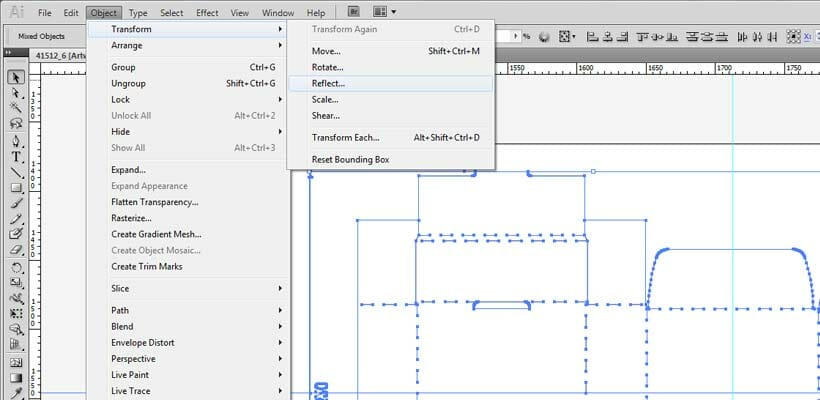
The easy solution to this? Select the cutter guide within your editing software and flip the drawing from left to right (in Adobe Illustrator, for example, you can do this by going to Object > Transform > Reflect).
If in doubt, always check with your packaging supplier. They most likely will be able to supply the cutter guide in the correct orientation for you.
Vector graphics
Using raster file types instead of vectors
If you start talking about vectors and raster files to the average person, they won’t have the foggiest idea what you are on about.
But in simple terms, raster files (also referred to as bitmaps) are images composed of pixels (tiny dots).
These are used for full-colour graphics and photographs due to the level of detail they can achieve. Standard formats include JPEG, TIFF, and PNG.
Vectors, on the other hand, are effectively mathematical formulae, which store the lines, shapes, and colours that make up an image. These are often saved as AI, EPS, and PDF files, and are also used for fonts.
So how can using one rather than the other cause problems?
Well, a vector, being a mathematical formula, can be scaled to any size without losing quality, which is essential if you are placing your company logo on the side of a large box or on transit packaging.
If you are using a raster image and scaling it up to a large size, the number of dots/pixels does not increase; they get larger.
This results in fuzzy edges and a lack of definition, or, even worse, a pixellated appearance. This makes your packaging appear less professional and less impactful.
So, as a general rule of thumb, use vector files or icons, logos, and bold single colour graphics wherever possible. This will give a clean, crisp finish regardless of the printing method you are using for your packaging.
Low-resolution images
Low quality (or web optimised) imagery
Despite the need to use vectors wherever possible, the key limitation of these is their inability to easily reproduce photographic-quality or highly detailed imagery.
This is why, for luxury packaging and for many FMCG products and retail items in general, raster images will be used. They lend themselves particularly well to high-volume lithographic or digital printing.
The problem occurs when the images used are too low in resolution.
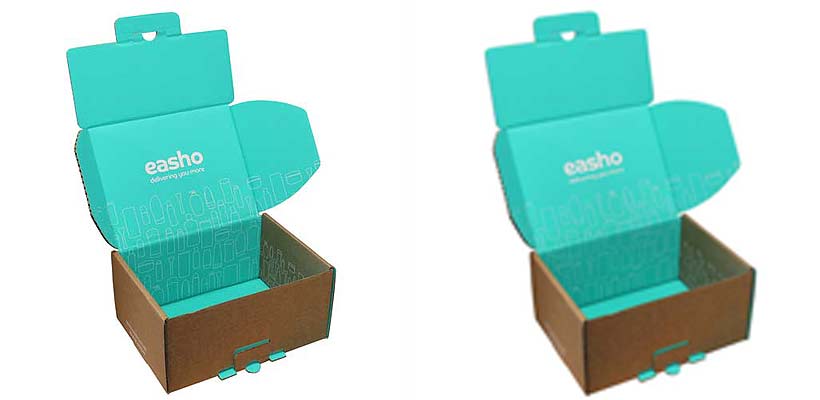
As mentioned above, raster files are made up of numerous pixels. The specific amount contained within an inch is the image’s resolution. To be printed successfully (e.g., without appearing fuzzy or pixelated), the image needs to be at least 300 dpi (dots per inch).
The problem of using an image below this resolution (such as those downloaded from the internet, which are typically 72 dpi to suit monitors and screens) is a fuzzy, low-quality appearance with no definition.
This equally applies to a 300 dpi image, which is “blown up” to double its size, effectively halving in resolution (to 150 dpi).
As such, it is essential to use high-resolution photography at the correct size.
RGB graphics
Using RGB colour space instead of CMYK/Pantone
Another issue with downloading images from the internet for use on your packaging (aside from low resolution and potential copyright issues) is that they may not contain the correct colours.
Physical printing uses four inks to create a photographic image: cyan, magenta, yellow, and black. These are abbreviated to CMYK.
A web image, however, uses red, green, and blue (RGB) colours to display correctly on a screen.
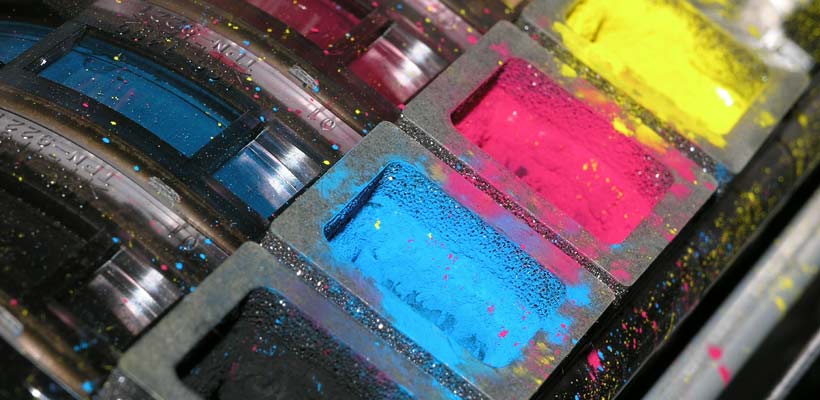
As such, an RGB image, if not correctly converted, will look “washed out” and often have very odd colours – certainly looking nothing like it did on your screen.
Using CMYK instead of RGB applies not only to images but also to your entire packaging artwork file. Most art-working software will allow you to switch between the two, so if you want your colours to print correctly, remember to make sure the colour settings are correct.
Small fonts
Including fonts which are too small
With consumer packaging printed using litho lamination (a high-quality paper laminated to corrugated material), this is not an issue.
But due to the nature of the paper substrate that makes up the outer walls of typical corrugated material being quite porous and rough, there will be a minimal amount of ink that bleeds outside of the intended print area.
With the majority of graphics and design elements, this will not be noticeable. Still, on something as detailed as small text, it can make the text illegible (this can be worsened further by using typefaces with a very thin “weight”).
As such, it is advisable not to use text smaller than 10pt if printing onto typical Kraft or Test corrugated material.
Font outlines
Risk of replacement or substituted typefaces
Another issue with fonts is having them accidentally substituted before going to print.
Imagine, for example, that your company’s branding uses relatively rare and unique fonts. You may have had to purchase a license to use it, and whilst you or whoever is producing your artwork has it installed on their Mac or PC, most other people won’t.
And therein lies the problem.
If the font has not been embedded in the document (or supplied with the files), when your packaging supplier opens the file, the software will look for it; if and when it can’t find it, it will use substitute fonts instead.
Not only will this change the appearance dramatically, but it can also mean that words become truncated or disappear altogether.
Whilst most packaging suppliers would highlight this to you, if it slips through, your packaging will look nothing like you expected.
The simplest solution is to convert all of your text to outlines. These then become vector graphics, which are not reliant on finding the font to look correct.
Pro tip: Make sure you save a copy of your artwork with the text saved as text, and a separate copy with the text outlined to supply to your manufacturer/printer. Once the text has been outlined, it can’t be edited (e.g., to correct a typo), so you may have to reset the artwork to change the required copy.

Document bleeds
Not including bleeds in your artwork
Registration is the term given to markings on packaging artwork and to the technology that allows different colours to be printed in the correct areas of your document or packaging. Effectively, it aligns the item being printed to the print heads, placing the inks.
And whilst the latest printing equipment can allow for very tight tolerances on registration, it has to be assumed there is the potential for some movement during printing (which is where trapping and overprinting come in).
This is why, when using graphics or even blocks of solid colour that run over a cut line, you include what are known as bleeds.
This basically means you are adding 3mm and 10mm (depending on the print method, equipment, etc.) outside of the intended print area (and outside of the cutting area). This means if there is some movement during the printing or cutting process, it does not leave unsightly, non-printed regions at the edges.
Please note: Bleeds only apply to blocks of colour or graphics that run outside of the cutter guide, and not between joined panels within the cutter guide itself.
Safe margins and white space
Ignoring safe margins and white space
Similarly, to allow for movement and poor registration of your packaging artwork during printing and cutting, it is also essential to adhere to “safe areas” when creating your artwork.
A good rule of thumb is to typically leave 15-20mm of space around cut and crease lines on your cutter guide. This should prevent graphics or logos from being cut off or unintentionally stretching across different panels.
There is another benefit to this, however, and this is forcing you to consider the inclusion of “white space”.
Including this in your design not only makes the information more legible but also makes the design look more professional and visually appealing.
Black inks
Using a heavy or weak black
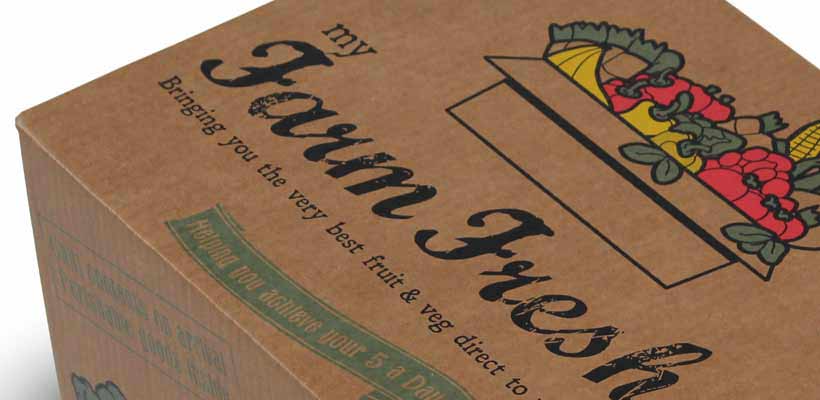
Printing onto Kraft cardboard can obviously affect the appearance of your chosen colours.
What many people don’t know is that how you set up and “black” print within your artwork can have a significant effect on the outcome, too.
For example, many people will use only black ink for their black graphics, text, etc. This would be represented in CMYK and C=0, M=0, Y=0, K=100 (with the numbers being the percentage of that colour ink being used). What this produces is a very “weak” black that can look washed out and even grey.
Other people producing artwork will do the opposite, and use C=100, M=100, Y=100. Whilst this creates a very strong black, the amount of ink being put down means that there is the potential for smudging and smearing. It can also lead to longer drying times.
For the best results, use C=30, M=30, Y=30, K=100.
Proofing artwork
Not proofreading before sending your artwork to print
The final, perhaps biggest and yet most easily avoidable mistake when creating artwork files for your packaging is not proofreading before sending them off.
Typos, spelling and grammatical errors can make your business look unprofessional, potentially harming your brand perception and ongoing sales.
Besides proofreading yourself, it is also essential to have at least one other colleague review and sign off on the copy. After writing or looking at a document for a long time, when creating artwork, you can become blind to errors (your brain simply sees what it thinks should be there).
Avoidable mistakes here can lead to costly wasted packaging and the need to purchase new printing plates.

Bonus tip: Microsoft
Using Word or other Microsoft programmes
If you have read through the above and are thinking OK, I can manage that, but where is the option for XYZ, chances are you may not be using the correct software.
In fact, if you are planning on using Microsoft software to produce your artwork (e.g., Word, PowerPoint, Publisher, etc.), then it is probably best that you stop and find someone else to look at this for you.
Microsoft software is not designed to produce print artwork files, simple as that.
Instead, if you have the software and are confident in using it, Adobe Illustrator, InDesign, Quark Express, or even (at a push, although it creates large files) Photoshop, can all be used to create your artwork files.
If you are struggling with any aspect of creating your artwork, speak with your packaging supplier – they may be able to help with this or recommend a suitable agency.
Summary
Avoiding packaging artwork mistakes
Making a mistake in your packaging artwork can lead to high costs for your business, including re-buying printing plates, wasted unusable boxes, and damage to your brand reputation.
But get it right, and it can help raise awareness of your business, convey important information, and even boost your sales.
Just make sure you avoid the pitfalls of these 10 packaging artwork mistakes, or download the free step-by-step guide on how to create your artwork file here.
About the author

Jay joined GWP Packaging in 2008, before going on to hold senior positions at VPK and Cotswold Packaging. He maintains close ties with GWP and Macfarlane.
Share this article
Further reading


Featured products





Get in touch
For full details on how GWP treats your data, please view this Privacy Policy. Your info is not shared with any third party.
Related guides
The colour wheel of branding and packaging
Packaging colours psychology – how it affects your success
Litho vs. digital print for packaging
Printed cardboard packaging – your options
Printed eCommerce packaging ideas
Recycling symbols on packaging (+ free downloads)
Corrugated board grades explained: types of cardboard
Transit packaging symbols (meaning and downloads)
Branded and printed sample cases – 9 visually striking ideas